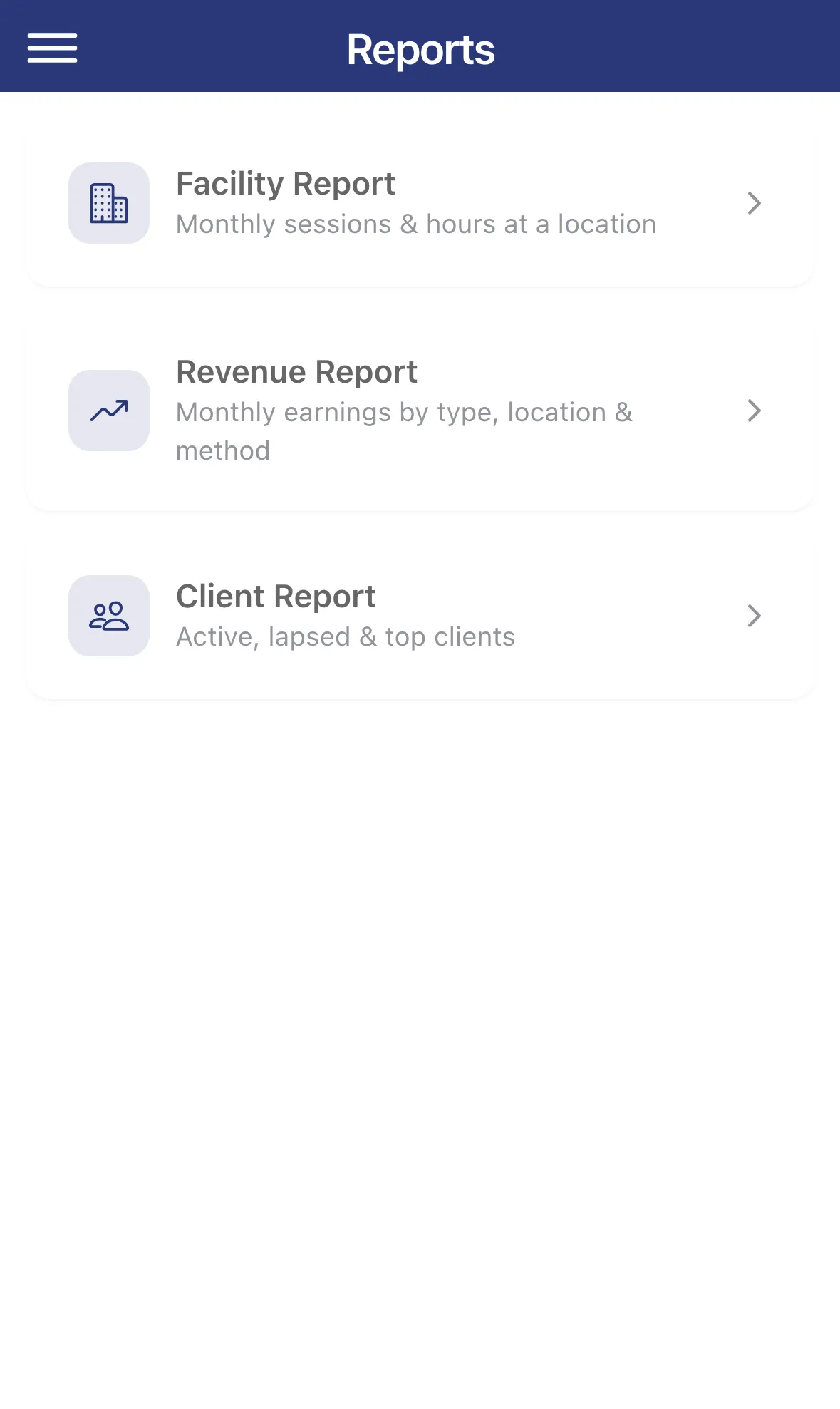
Reports
See your revenue, clients and facility hours by month, and export them.
Reports turn your sessions and payments into numbers you can read at a glance or send to someone else. Open them from the menu: Business Tools › Reports.
Each report has Export PDF and Export CSV buttons at the bottom. They’re greyed out when the report is empty.
Facility Report
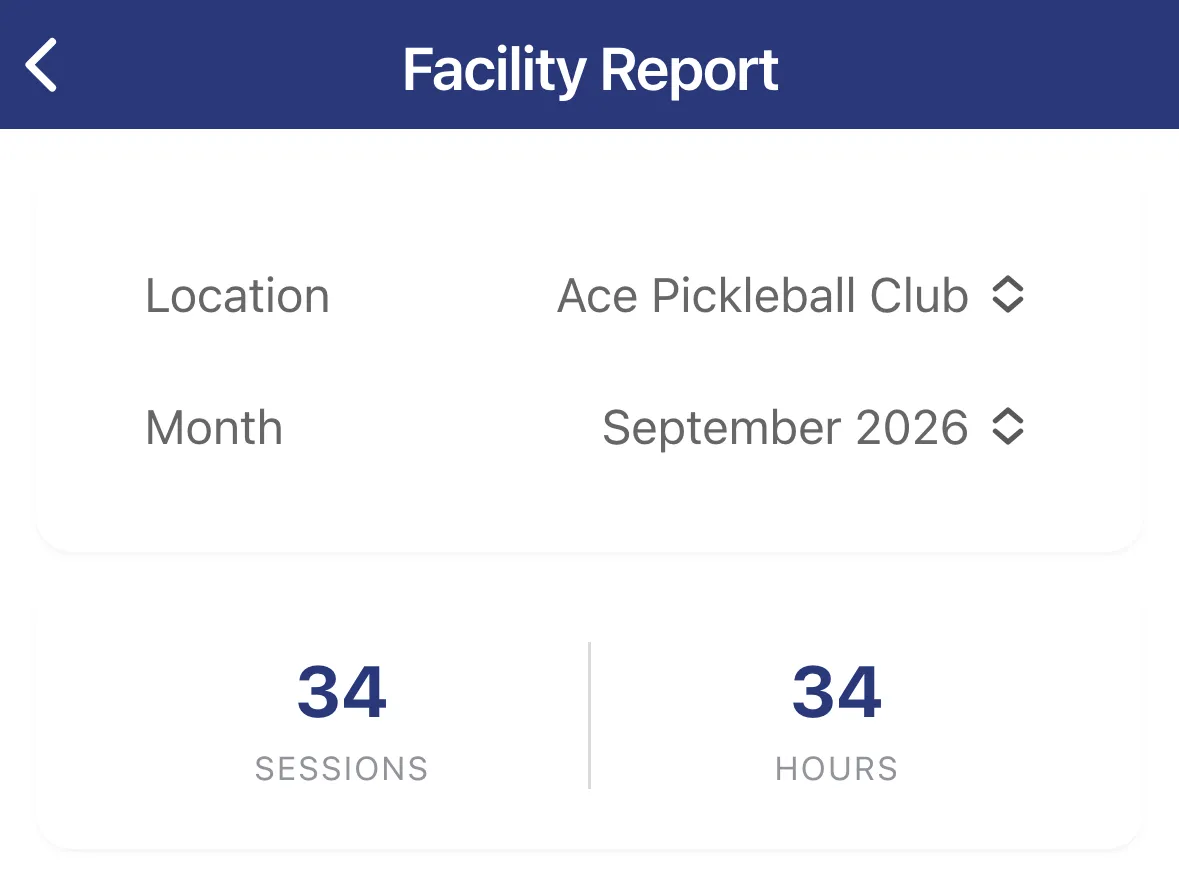
Section titled “Facility Report”Use it when a club or facility asks how much you coached there. It lists the sessions you completed at one location in a month.
- Pick a Location and a Month.
- The top shows your sessions and HOURS. Below is each one with its date, time, client, type and length.
If you haven’t set up any locations, it asks you to add one first.
Revenue Report
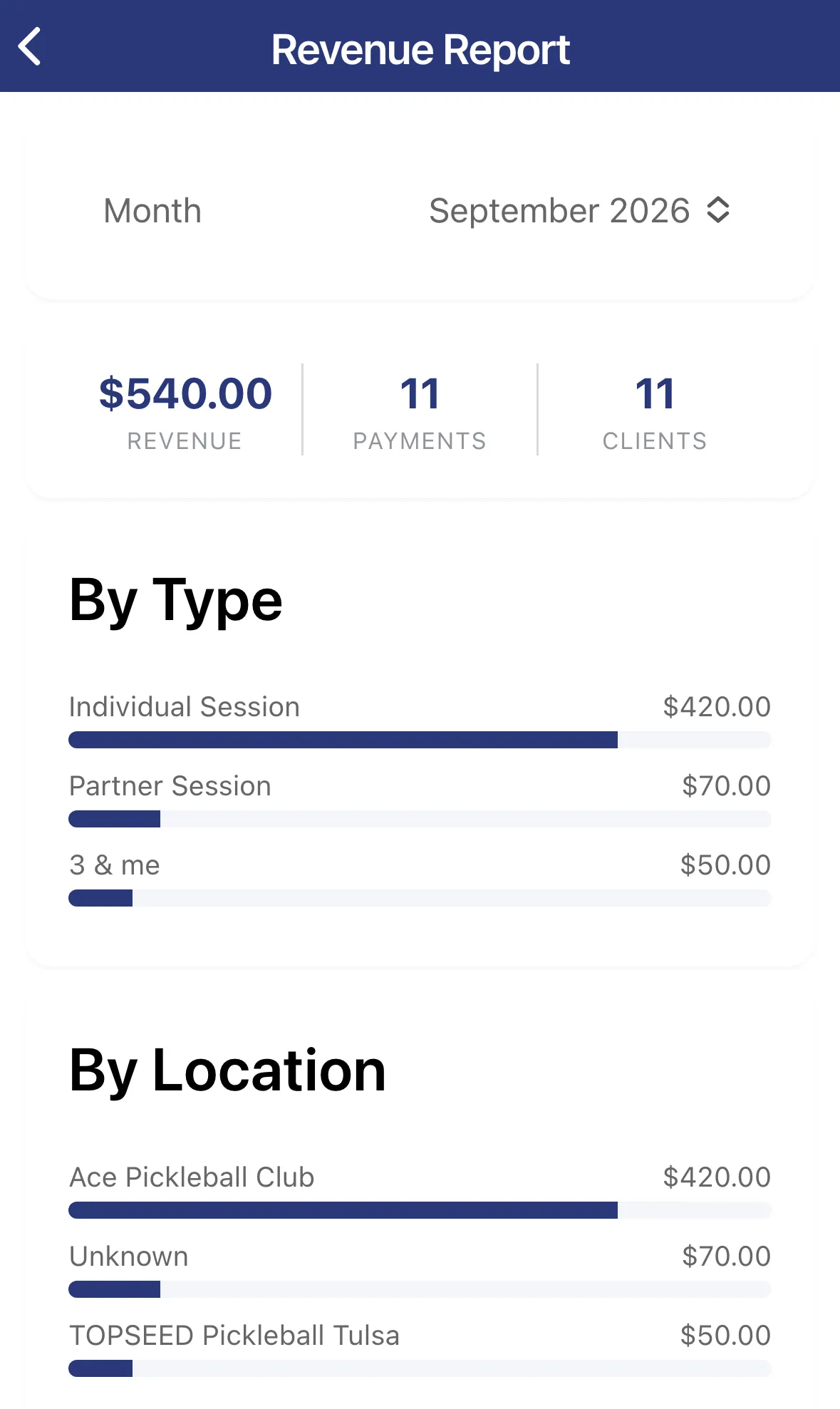
Section titled “Revenue Report”Use it to see what you earned. Pick a Month.
- The totals show REVENUE, PAYMENTS and CLIENTS who paid.
- Bar charts break revenue down By Type, By Location and by payment method.
- Top Clients shows who paid the most, and Payments lists every payment.
Payments you log with Record Payment on a client’s page count here. Payments in a different currency than yours are left out of the totals, and a note tells you so.
Client Report
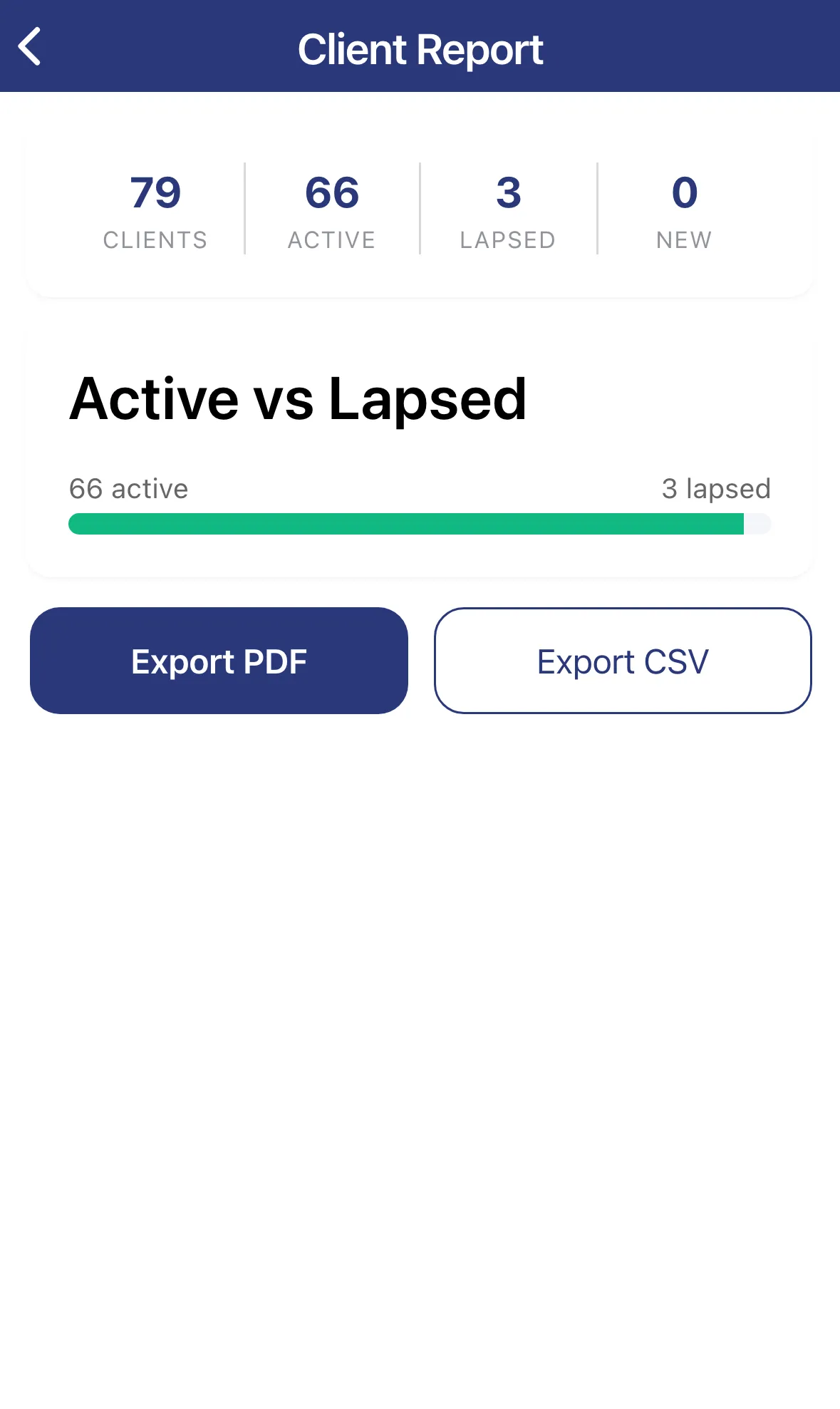
Section titled “Client Report”Use it to see who’s still coming. It covers all your clients, with no month to pick.
- The totals show CLIENTS, ACTIVE, LAPSED and NEW this month.
- Active vs Lapsed compares the two. A client is lapsed when they’ve had sessions before but none in the last 90 days.
- Lapsed — reach out lists the lapsed clients, so you know who to contact with Client Outreach. Top Clients shows your best five.