
What's on your Dashboard
A tour of the Dashboard tab, from your next sessions to your weekly numbers and the side menu.
The Dashboard is the first tab in IPTPA Biz Hub. It’s where you start each day: what’s next on your schedule, how your week is going, and anything waiting for you.
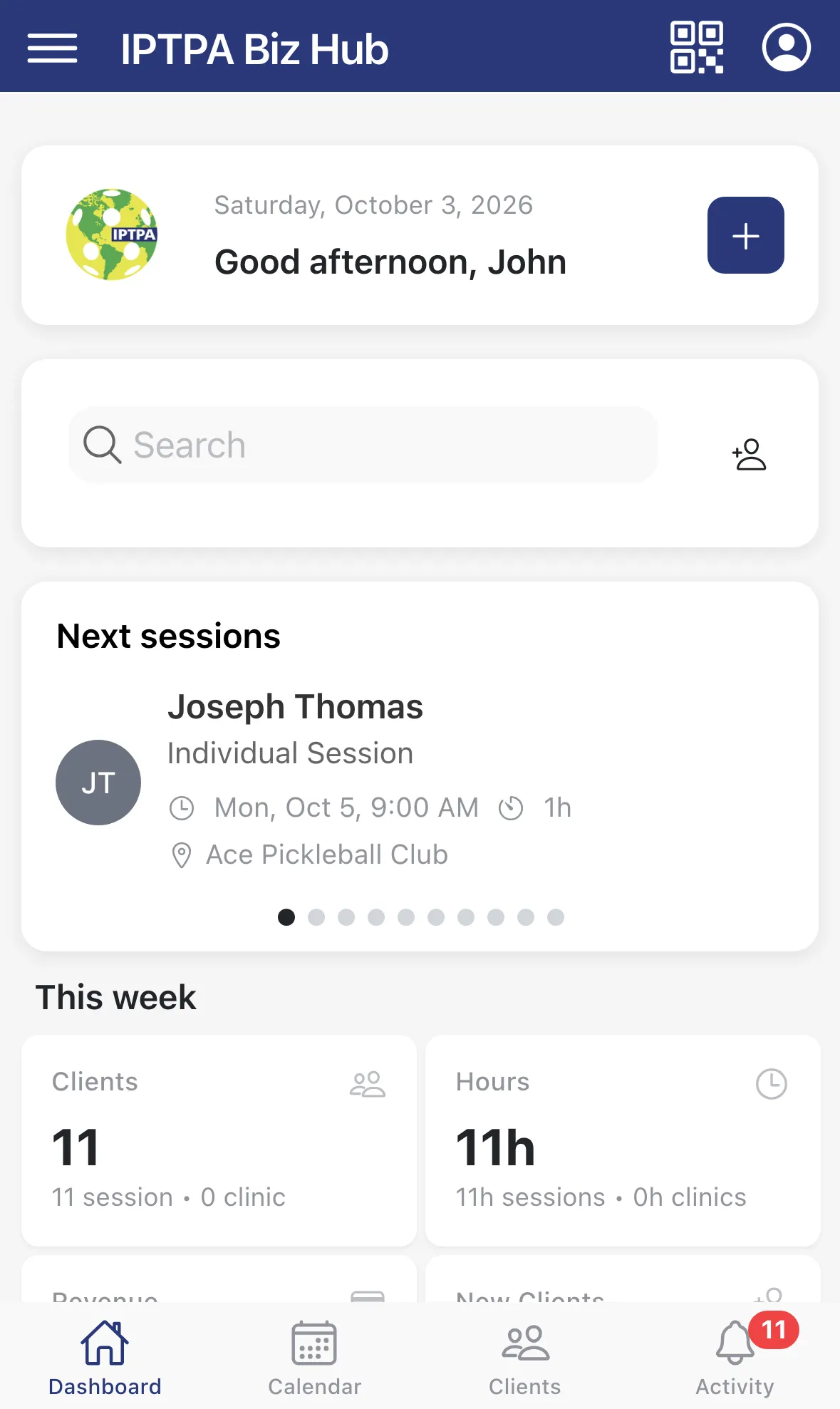
From top to bottom
Section titled “From top to bottom”The header. The menu button (three lines) on the left opens the side menu. On the right, the QR code button shows My Booking QR Code, a code clients can scan to open your booking page. The person icon opens a small menu with Profile, Help and Sign Out. New accounts also see Complete Profile there until the Setup Wizard is finished.
Greeting. Today’s date and a hello. The + button on this card starts a new appointment. See Book an appointment.
Search. Type in Search to find clients, appointments, session types and locations in one place. Results are grouped under Clients, Appointments, Session Types and Locations. The person-with-plus button next to the search box adds a new client.
Next sessions. Your upcoming sessions, one at a time, with the client, session type, date and time, length and location. Swipe sideways to see the next one. Tap a card to open the appointment.
Get your first booking. A new coach with no bookings yet sees a short checklist here instead of a grid of zeros: add your clients, make your booking page yours, send clients your booking link, and get a session on the calendar. Each step ticks off by itself when it’s done. Tap the X to hide the card.
This week. Cards for Clients, Hours and New clients for the week, each with a short breakdown. The fourth card shows Revenue if you track payments in the app, or Clinics if you don’t. Schedule utilization underneath shows how much of your available time is booked.
Recent Activity. Counts of the things waiting for you: Approvals, Payments, Notes Due and Overdue tasks. Tap View All › to open the Activity tab.
Today’s agenda. Everything on your calendar today, in time order, with the start time, length and location. Tap an item to open it. If nothing is booked it says No appointments scheduled for today.
The side menu
Section titled “The side menu”Tap the menu button in the header of the Dashboard, Calendar or Activity tab to open Menu:
- Dashboard, Calendar and Clients jump to those tabs.
- Under Business Tools: Client Outreach (message your clients), Reports and Settings.
The tab bar at the bottom of the screen always shows Dashboard, Calendar, Clients and Activity. A red number on Activity is how many things need you. See Updates and pending actions.