
Reset your IPTPA password
Get a reset code by email and choose a new password for your IPTPA login.
Request a code
Section titled “Request a code”-
On the sign-in screen, tap Forgot password?.
-
Enter your IPTPA member email.
-
Tap Send Reset Link.
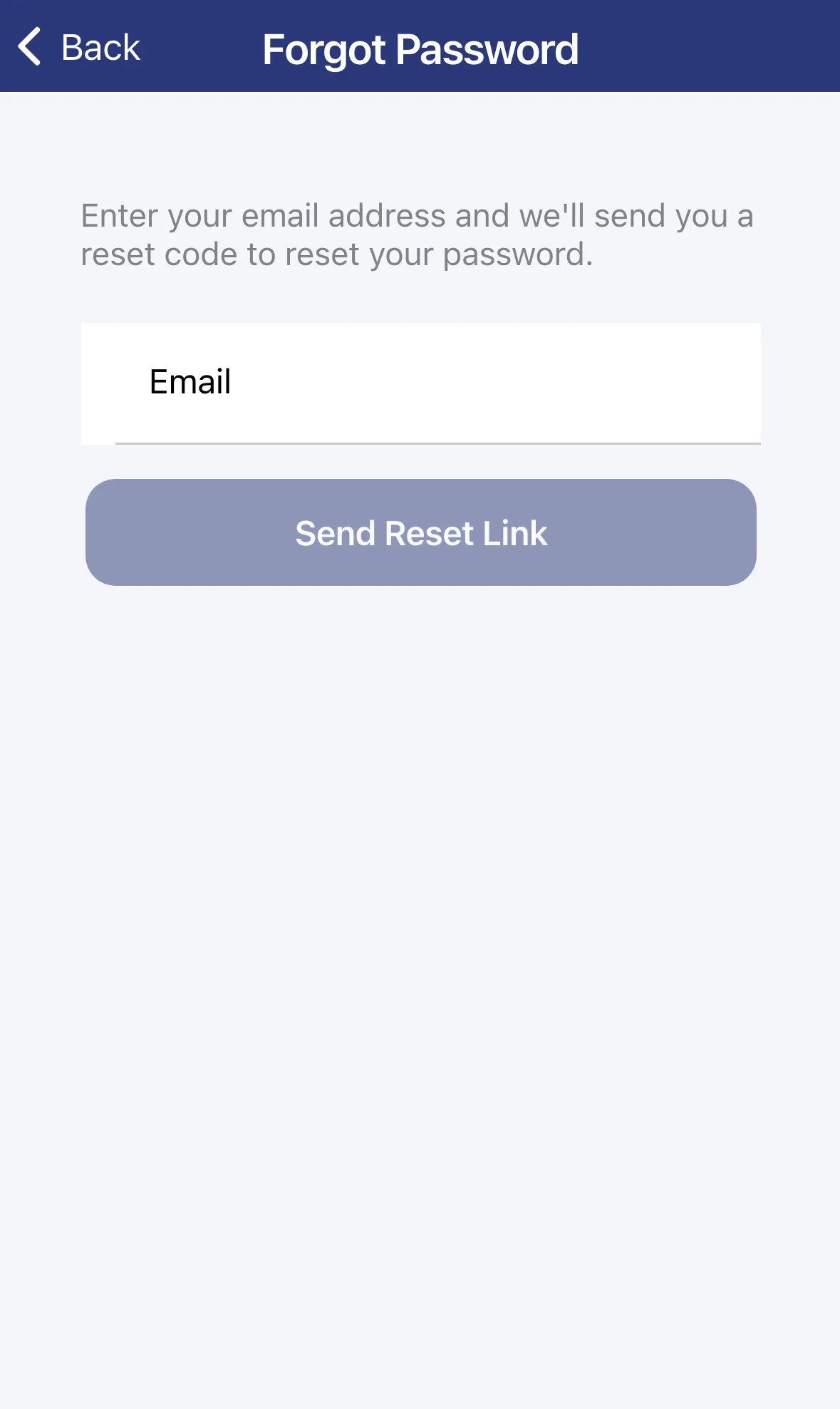
For privacy, you see the same message whether or not the email matches a member: “If an account with that email exists, you’ll receive a password reset code shortly.” Check your inbox, and your spam folder, for the code.
Set a new password
Section titled “Set a new password”-
Enter the code from the email in Reset Code.
-
Enter your New Password. It must be at least 8 characters.
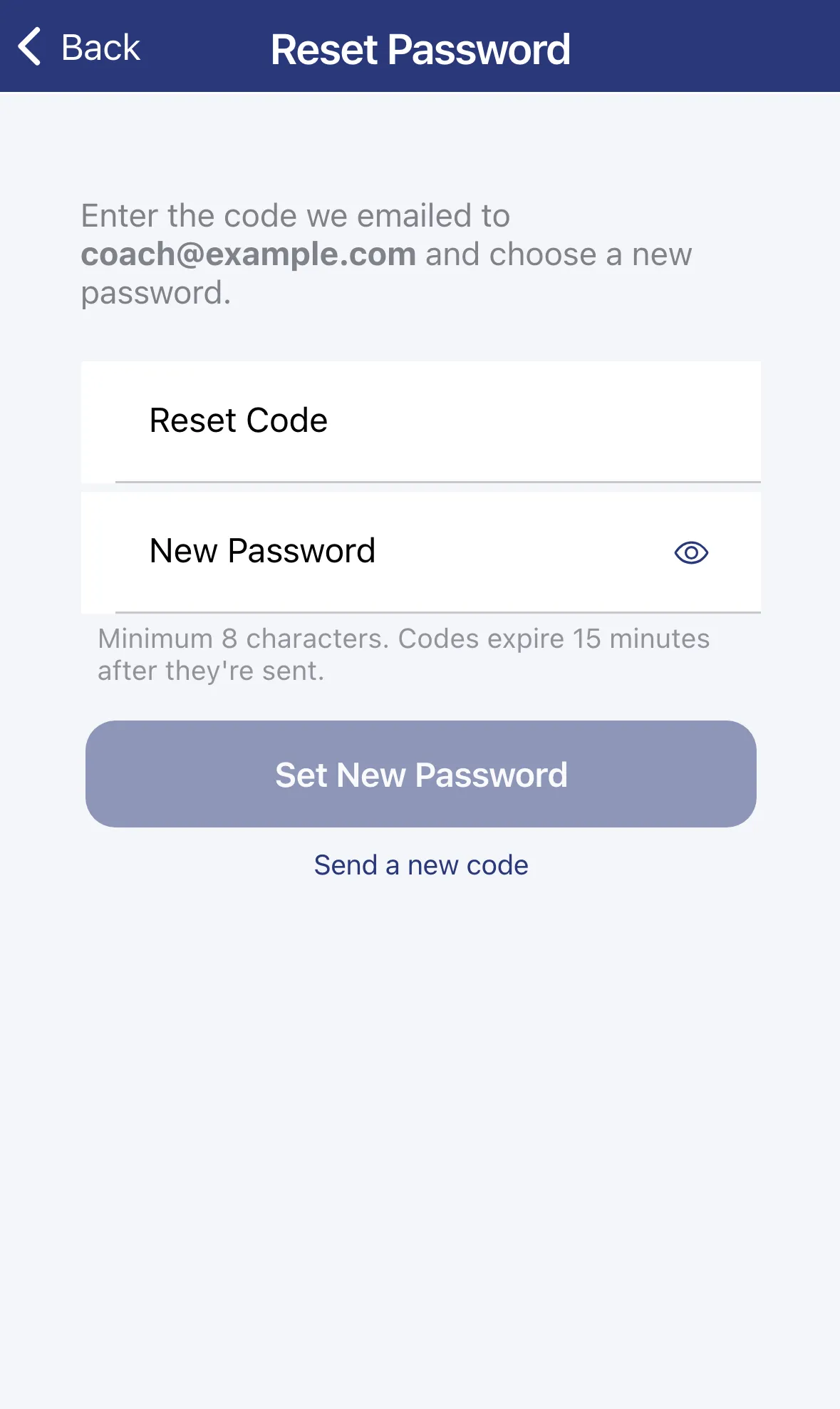
-
Tap Set New Password.
-
When you see “Your password has been updated successfully.”, tap Go to Sign In and sign in with the new password.
Codes expire 15 minutes after they’re sent. If yours has run out, tap Send a new code.
It didn’t work
Section titled “It didn’t work”- “This reset link is no longer valid” means the link was opened without your email. Tap Request New Code and start again.
- If no email arrives, wait a few minutes, then try again. If you still get nothing, contact bizhub@iptpa.com.