
Manage your equipment
Keep a record of your gear, track its status, and add notes as it ages.
Equipment Management is a list of your gear: your paddles, shoes, balls and more. Record what you bought and what it cost, change its status when it wears out or you sell it, and keep notes. Open it from the menu: Business Tools › Equipment Management.
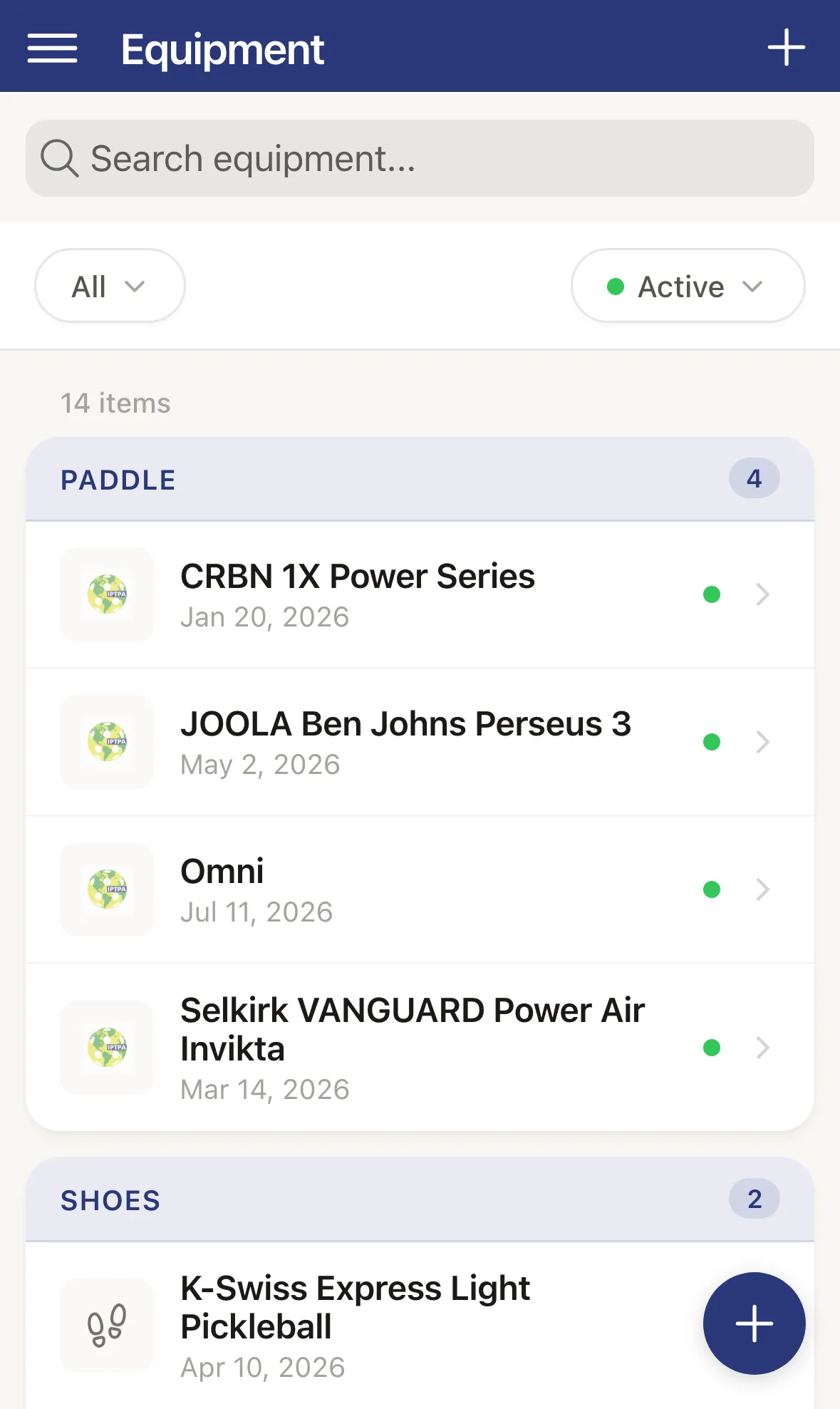
Browse your list
Section titled “Browse your list”- Items are grouped by type, with a count on each group. Each row shows the name, the purchase date and a coloured dot for its status.
- Use the search box (Search equipment…) to find an item by name.
- The two filters under it narrow the list. The first picks a type (All or one type). The second picks a status and starts on Active.
- Tap an item to open its details.
The types are Paddle, Shoes, Balls, Bag, Accessories and Apparel.
Add equipment
Section titled “Add equipment”-
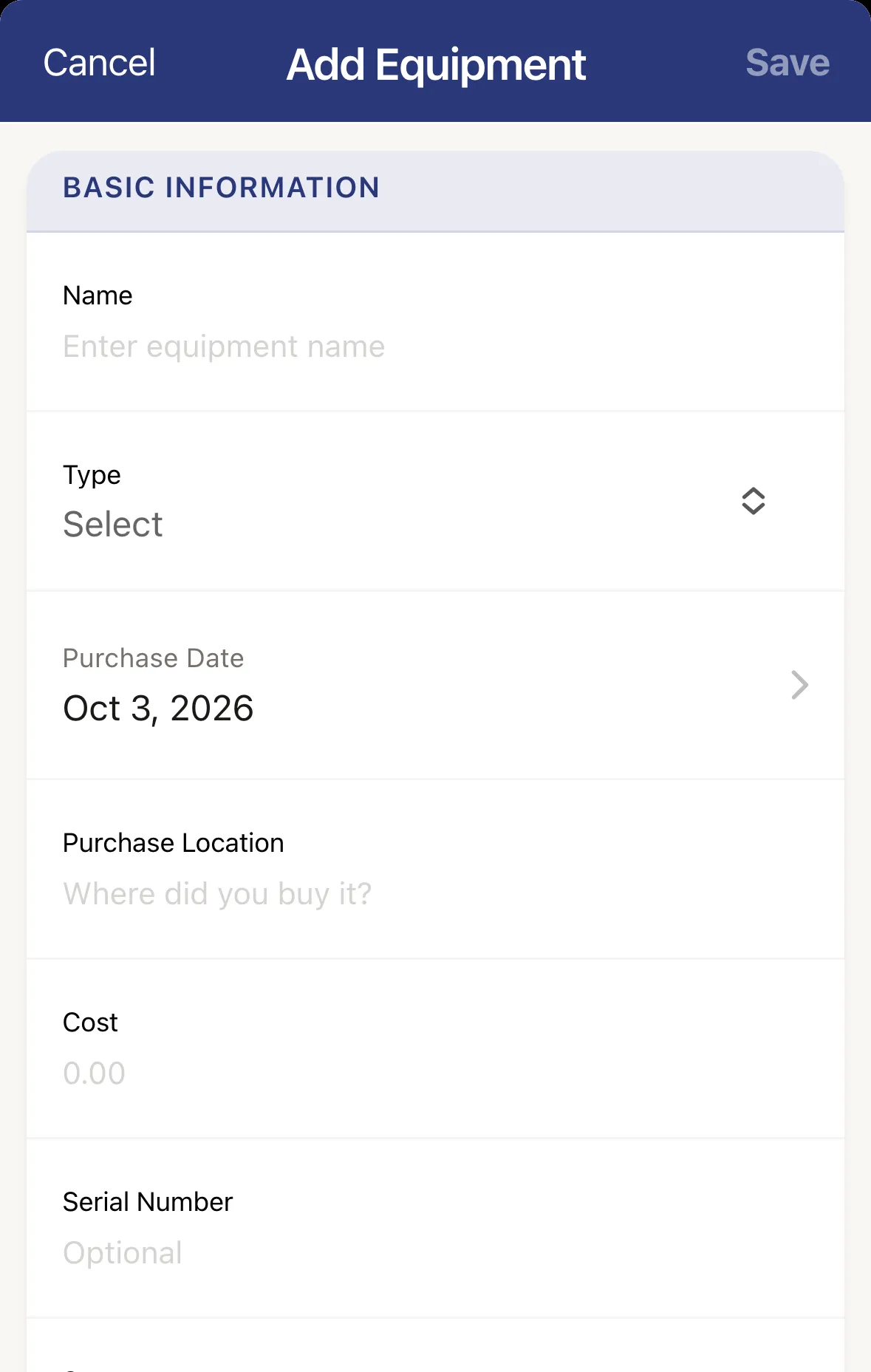
Tap the + button at the top right. If your list is empty, tap Add Equipment.
-
Fill in Name and Type. The other fields are optional: Purchase Date, Purchase Location, Cost, Serial Number and Status.
-
Choose a type of paddle to get a Paddle Details section for the specs. Other types have their own details section, such as Shoes Details or Balls Details.
-
Add Notes and a Photo if you like.
-
Tap Save. The button turns on once you’ve entered a name and a type.
If you enter a Cost, an Expense Integration section appears. Turn on Create expense record and pick a Payment Method, and the purchase is also logged as an expense.
See an item’s details
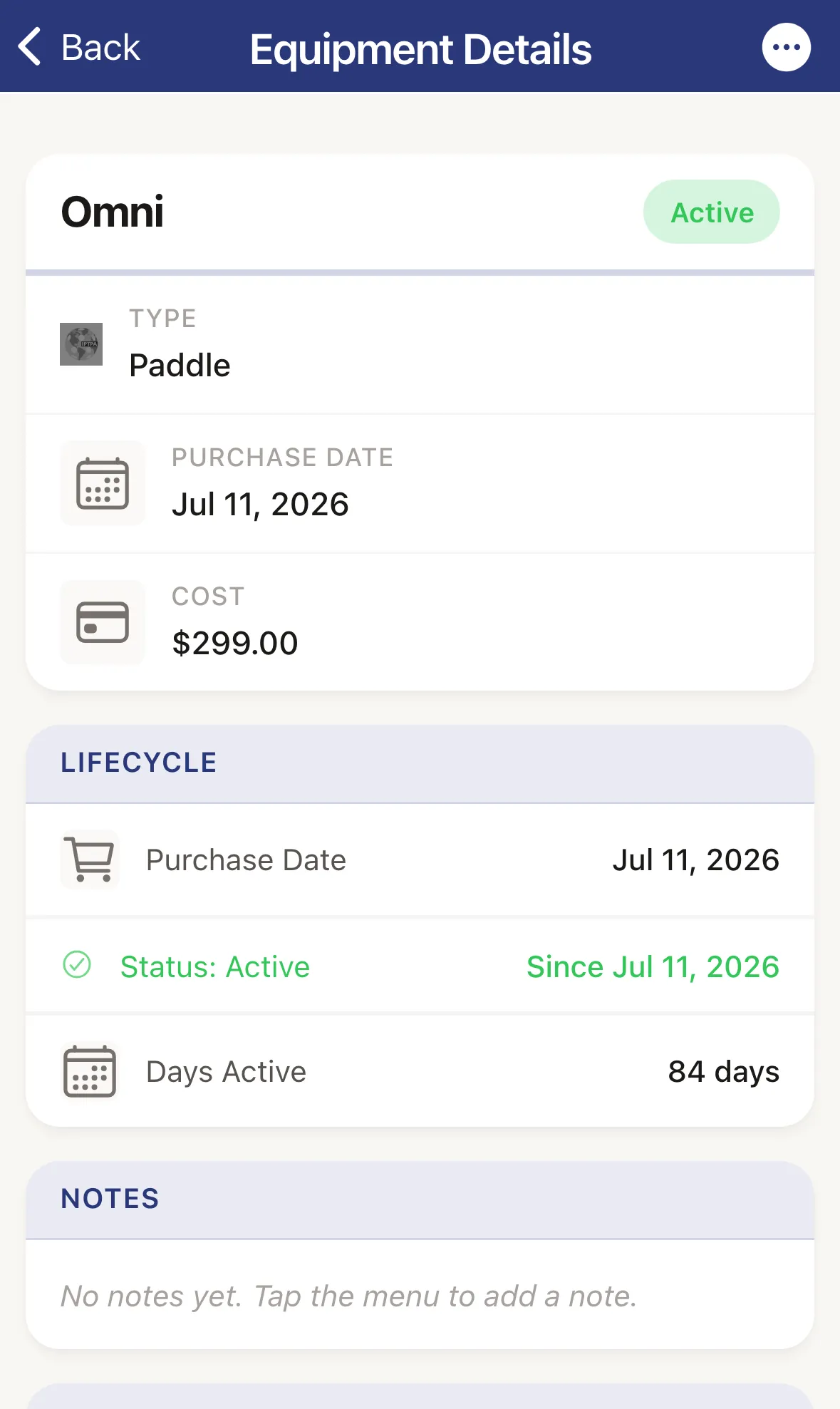
Section titled “See an item’s details”Tap an item to open Equipment Details. It shows the photo, name and status, then the type, purchase details, specs, a Lifecycle summary, your Notes and any Linked Expenses.
Change status, add a note, or edit
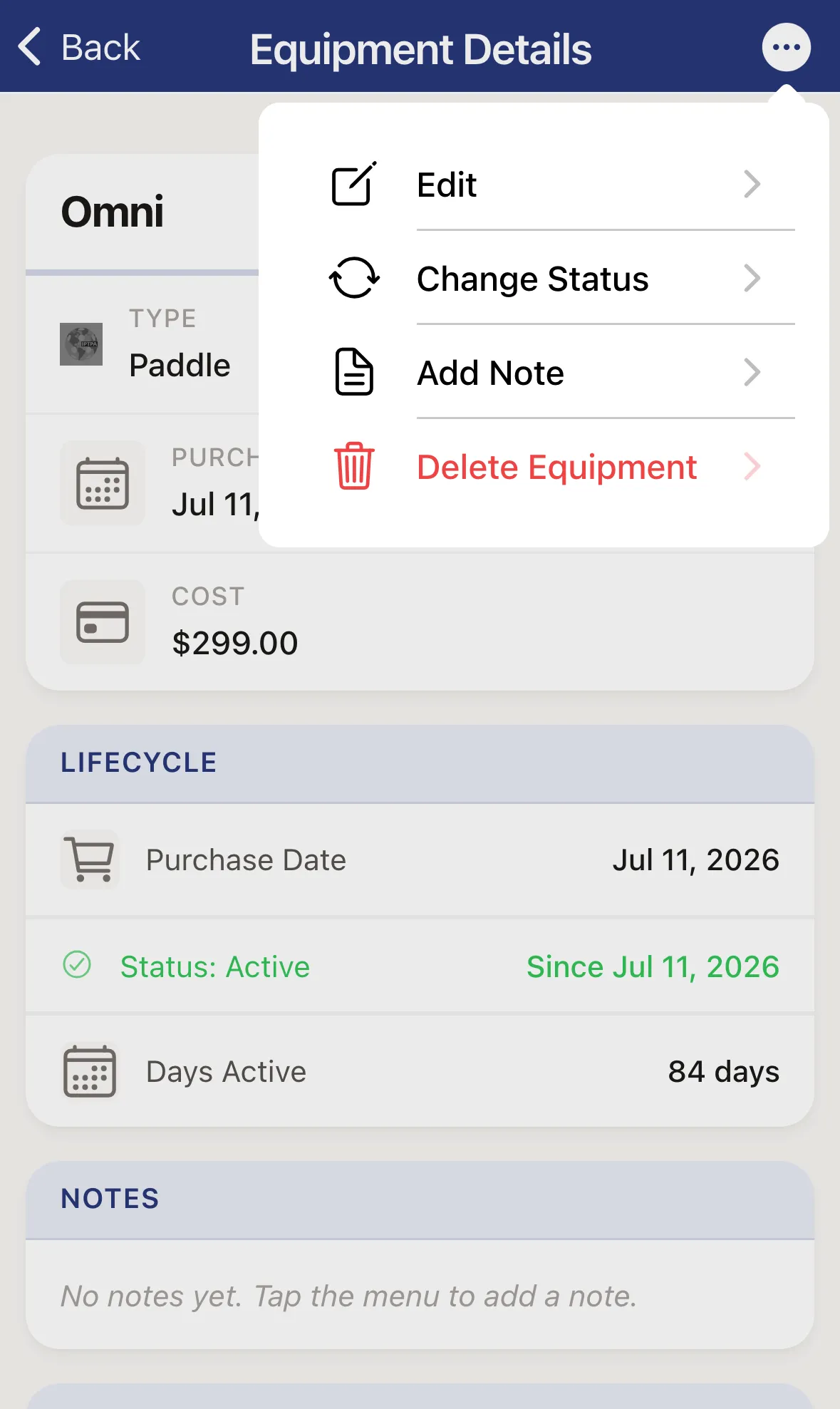
Section titled “Change status, add a note, or edit”Tap the … button at the top right for these options:
- Edit opens the same form as when you add an item. Tap Save when you’re done.
- Change Status lets you pick Active, Inactive, Damaged, Lost, Sold, Donated or Loaned. Tap Next, add an optional reason (plus a sold price for Sold, or who you loaned it to for Loaned) and tap Save. The change shows up in the Lifecycle summary.
- Add Note saves a dated note on the item.
- Delete Equipment removes it.
Under Linked Expenses, Create Expense Record logs the item’s cost as an expense. For an item marked Sold with a sold price, it logs the sale as income instead.