
Track your expenses
Log what you spend on coaching, review it by month and category, and edit or delete entries.
Use expenses to keep track of what your coaching business costs: court rentals, equipment, travel, memberships and more. Open it from the menu: Business Tools › Financials if you’ve turned on manual payment tracking, or Business Tools › Expense Management if you haven’t. The page itself is titled Financials or Expenses to match.
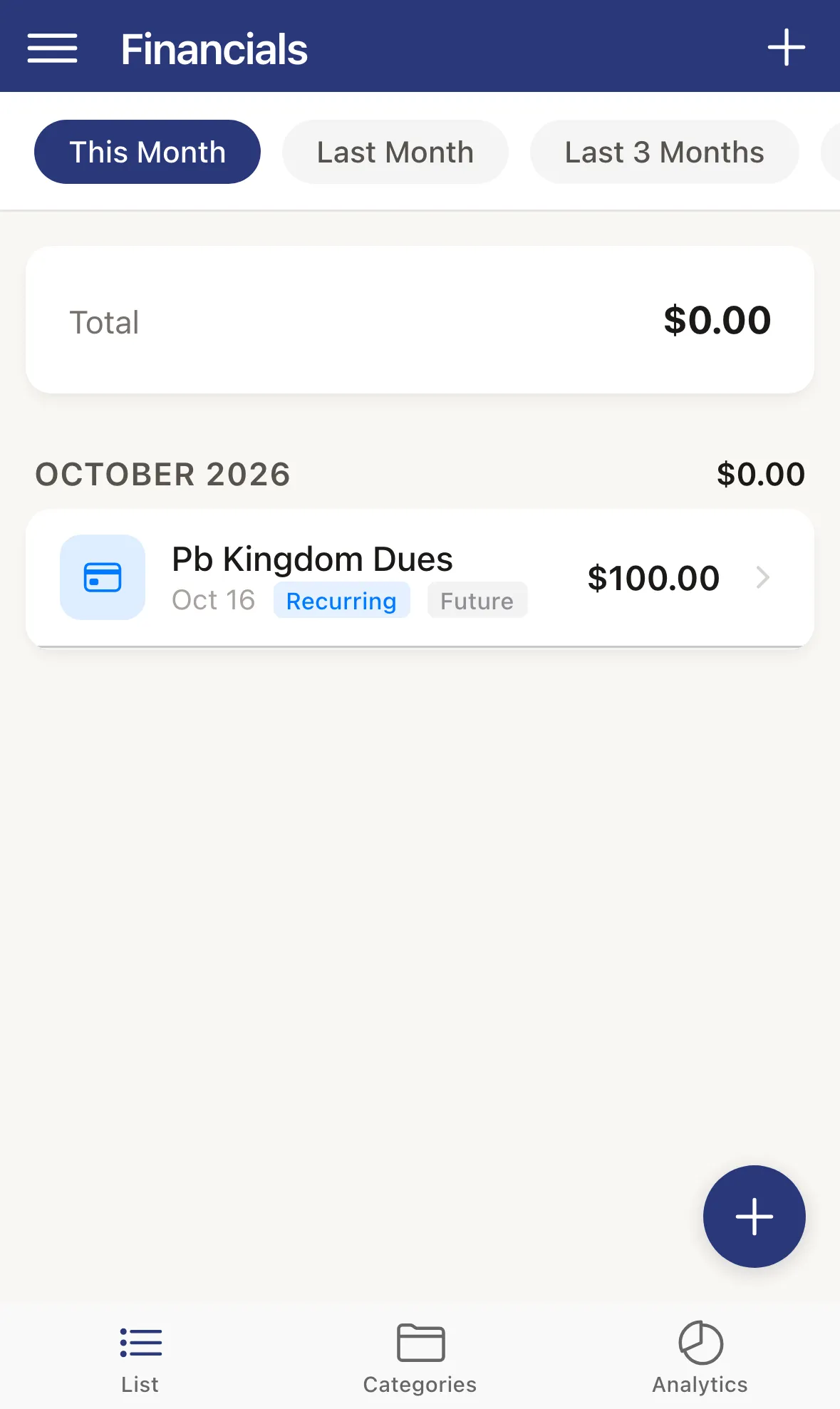
At the bottom of the page, List, Categories and Analytics switch between three views. All three share the same time frame chips along the top: This Month, Last Month, Last 3 Months, Last 6 Months, This Year, Last Year and All Time.
Review your expenses
Section titled “Review your expenses”List. Expenses grouped by month, each month with its total. A row shows the title, date and amount, and badges such as Recurring, Skipped or Future. Tap a row to see the details. If you have income recorded too (payments you mark as paid show up this way), the top card shows Spent, Earned and Net instead of one Total.
Categories. Your spending split by category for the time frame you picked.
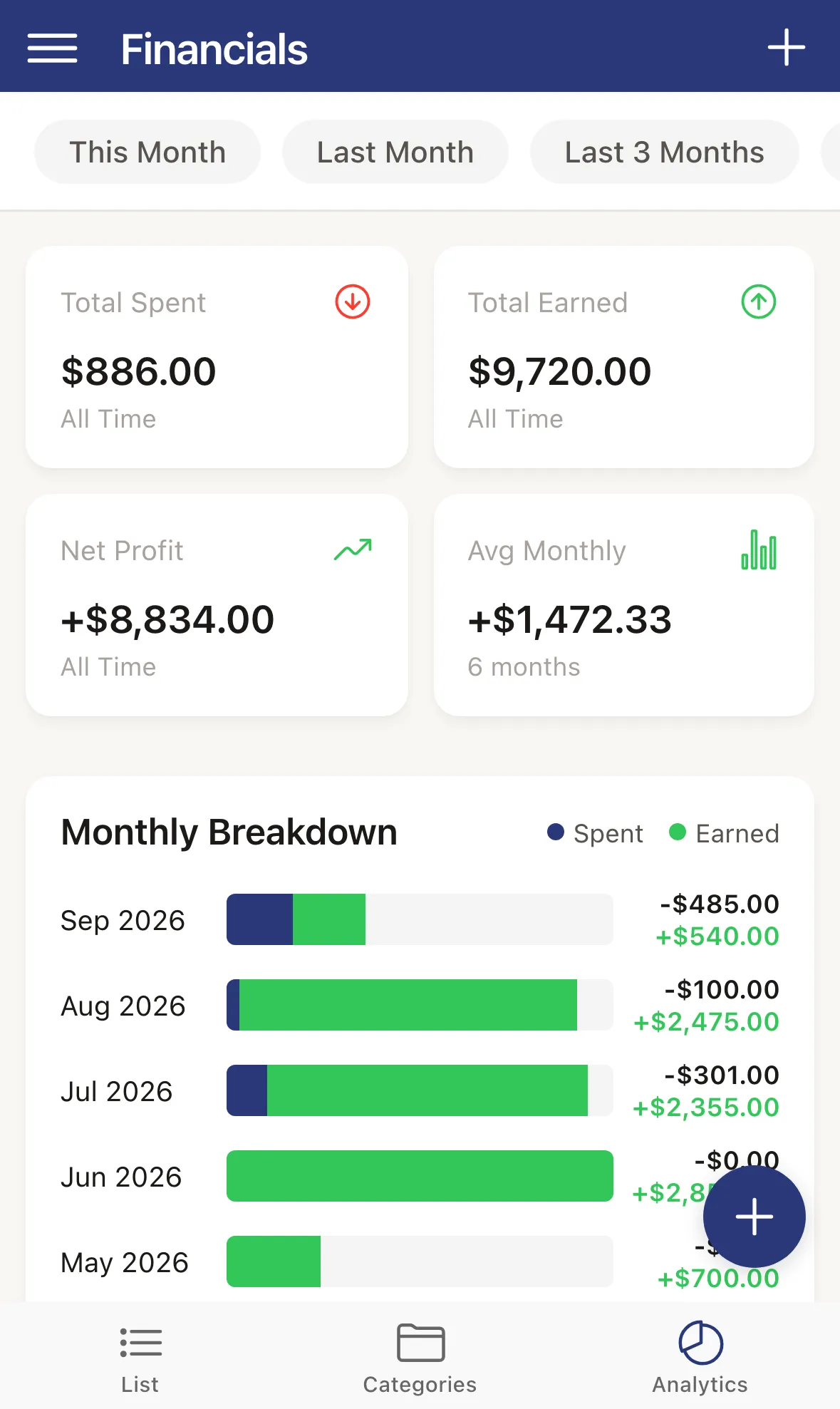
Analytics. Summary cards (Total, Monthly Avg, Top Category and # of Expenses), a Monthly Spending chart and the Expense Categories breakdown. If you have income too, the cards become Total Spent, Total Earned, Net Profit and Avg Monthly, and the chart is the Monthly Breakdown.
Log an expense
Section titled “Log an expense”-
Tap the + button, at the top right or at the bottom right. If you have no expenses yet, tap Add First Expense.
-
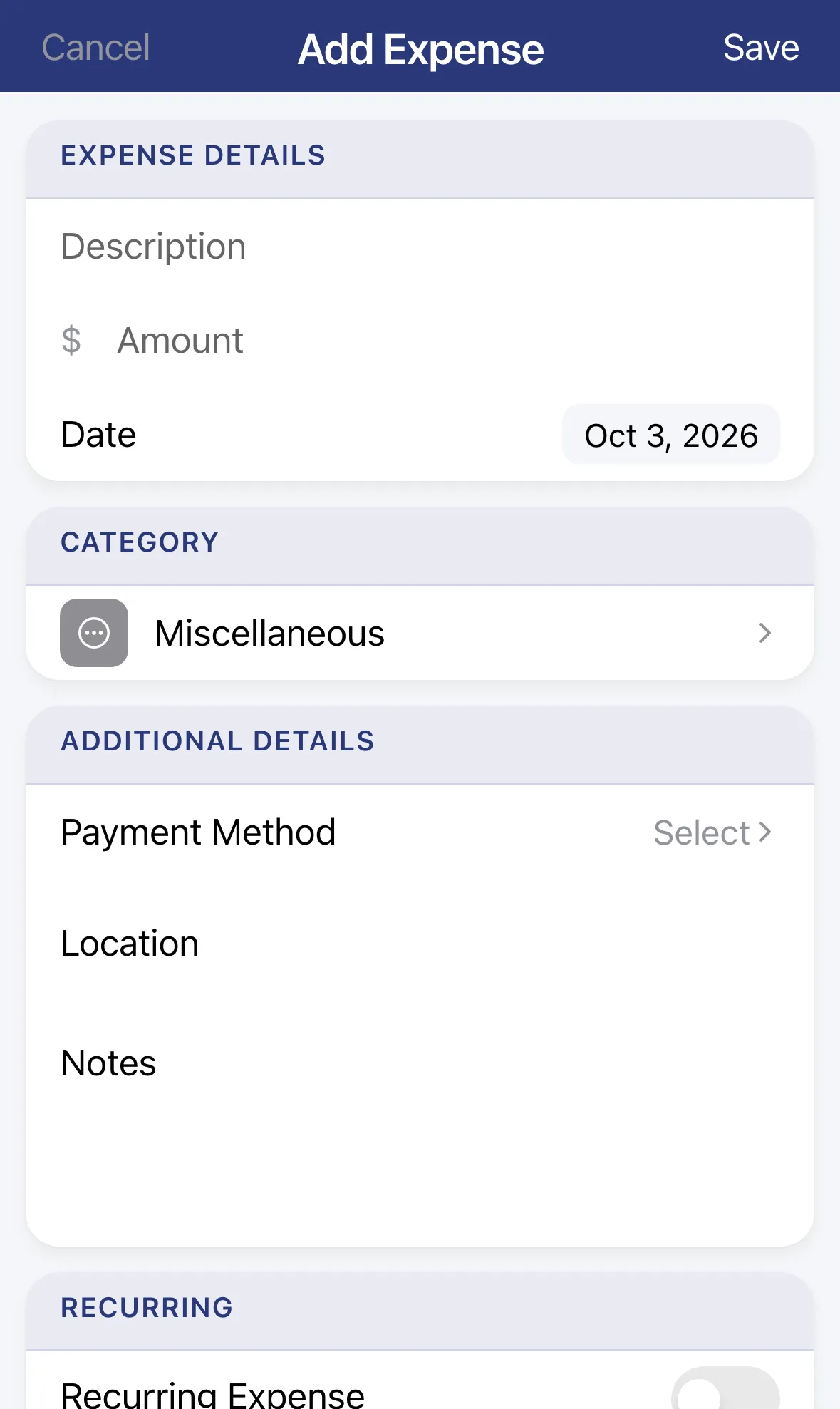
Under Expense Details, type a Description and an Amount, and tap Date to change the date.
-
Under Category, choose one: Membership Fees, Lessons, Tournament Fees, Equipment, Court Rental, Travel, Mileage, Miscellaneous or Income.
-
Optional: under Additional Details, set the Payment Method (Cash, Credit Card, Debit Card, Electronic Transfer or Other), a Location and Notes.
-
Optional: under Receipt, tap Add Receipt Photo.
-
Tap Save.
Mileage. Choose the Mileage category and enter the distance driven instead of an amount. The amount is worked out from the rate you set in Mileage.
Equipment. Choose Equipment and turn on Create equipment record from this expense to add the item to Equipment Management at the same time.
Recurring. Turn on Recurring Expense under Recurring for a bill that repeats. Pick a Frequency of Monthly, Quarterly or Annual, and optionally turn on Has End Date.
Edit or delete an expense
Section titled “Edit or delete an expense”Tap an expense to open Expense Details (Income Details for income). Edit opens the form again. Tap Save to keep your changes.
To delete, tap Delete at the bottom of the details, or swipe a row in the list to the left and tap the red bin.
Get a report for tax time
Section titled “Get a report for tax time”The Expense Report totals a whole year by category and payment method, and exports it.