
Block off time
Mark time on your calendar as unavailable so clients can't book it.
Use blocked time for lunch, a day off, a trip or anything else that shouldn’t be booked. Blocked time shows on your calendar, and clients can’t pick it from your booking page.
Block off time
Section titled “Block off time”-
Open the Calendar tab and tap the + button.
-
In the Add to Calendar list, tap Block time.
-
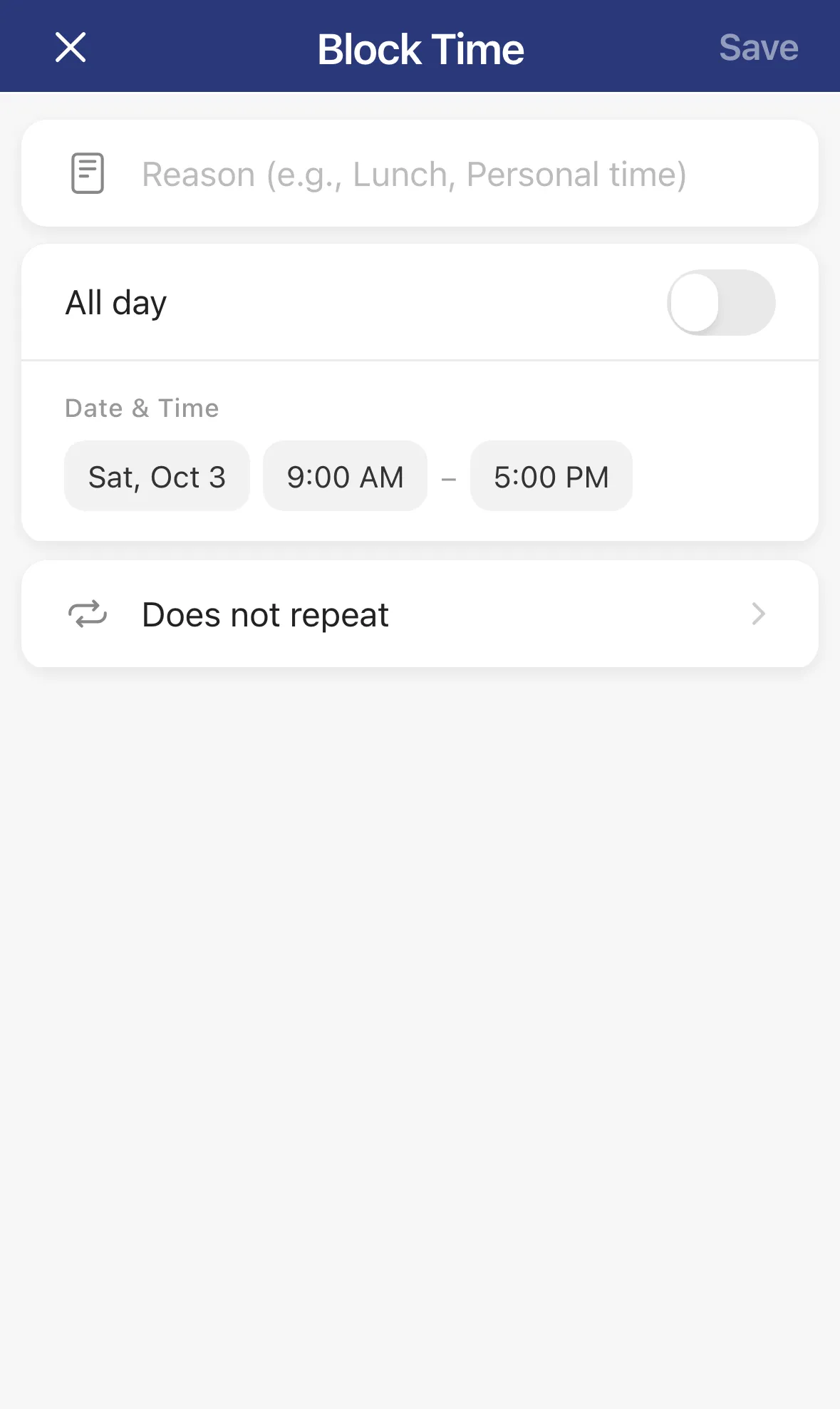
Type a reason, like Lunch or Personal time.
-
Pick the date and times. Tap the date chip or either time chip to change it. To block whole days, turn on All day and choose an End date if it spans several days.
-
Tap Save.
Repeat a block
Section titled “Repeat a block”Tap Does not repeat to choose how often it repeats: Daily, Weekdays (Mon–Fri), Weekends (Sat–Sun), Weekly, Every 2 weeks or Monthly. Then set Ends to Never, On date or After #. With After #, enter the number under Occurrences.
Change or remove a block
Section titled “Change or remove a block”Tap the block on your calendar to open it. You can also manage every block in one list from Settings › Blocked Times, which is the place to go for recurring blocks.