
Edit or cancel an appointment
Move, change or cancel an appointment, including one in a repeating series.
Both start the same way: open the appointment from your calendar, the Dashboard or the Activity tab.
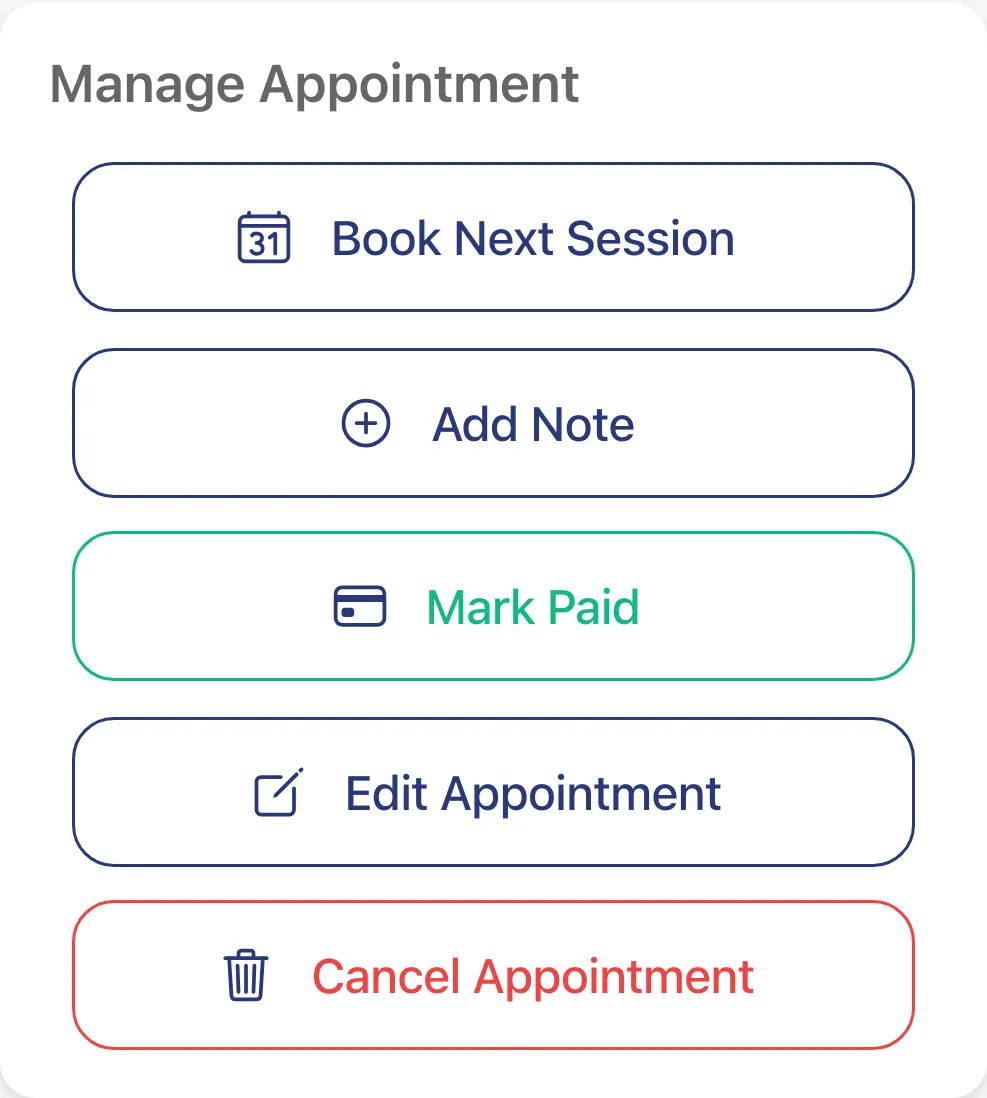
Edit an appointment
Section titled “Edit an appointment”- Tap the appointment, then tap Edit Appointment.
- Change the date, time, Duration, Session Type, Location or Notes (Optional). It’s the same form you used to book it.
- Tap Save.
If you change the date or time, the client gets a text with the new time. Texts for appointments you booked follow Notify clients when I book for them in Settings › Notifications.
Repeating appointments
Section titled “Repeating appointments”If the appointment is part of a series and you change when it happens, Apply changes to asks how far the change goes:
- This appointment only
- This and following appointments
- Entire series
Cancel an appointment
Section titled “Cancel an appointment”- Tap the appointment, then tap Cancel Appointment.
- Tap Yes, Cancel. Tap No to keep it.
- For a repeating appointment, choose This appointment only, This and following appointments or Entire series. Keep appointment backs out.
Cancel Appointment isn’t shown once an appointment is completed, cancelled, declined or marked no-show.