
Add session notes
Write down what you worked on in a session, from the appointment or from Activity.
Session notes are for you: what you covered, how the player did, what to work on next. Add them after a session while it’s fresh.
Add a note from an appointment
Section titled “Add a note from an appointment”-
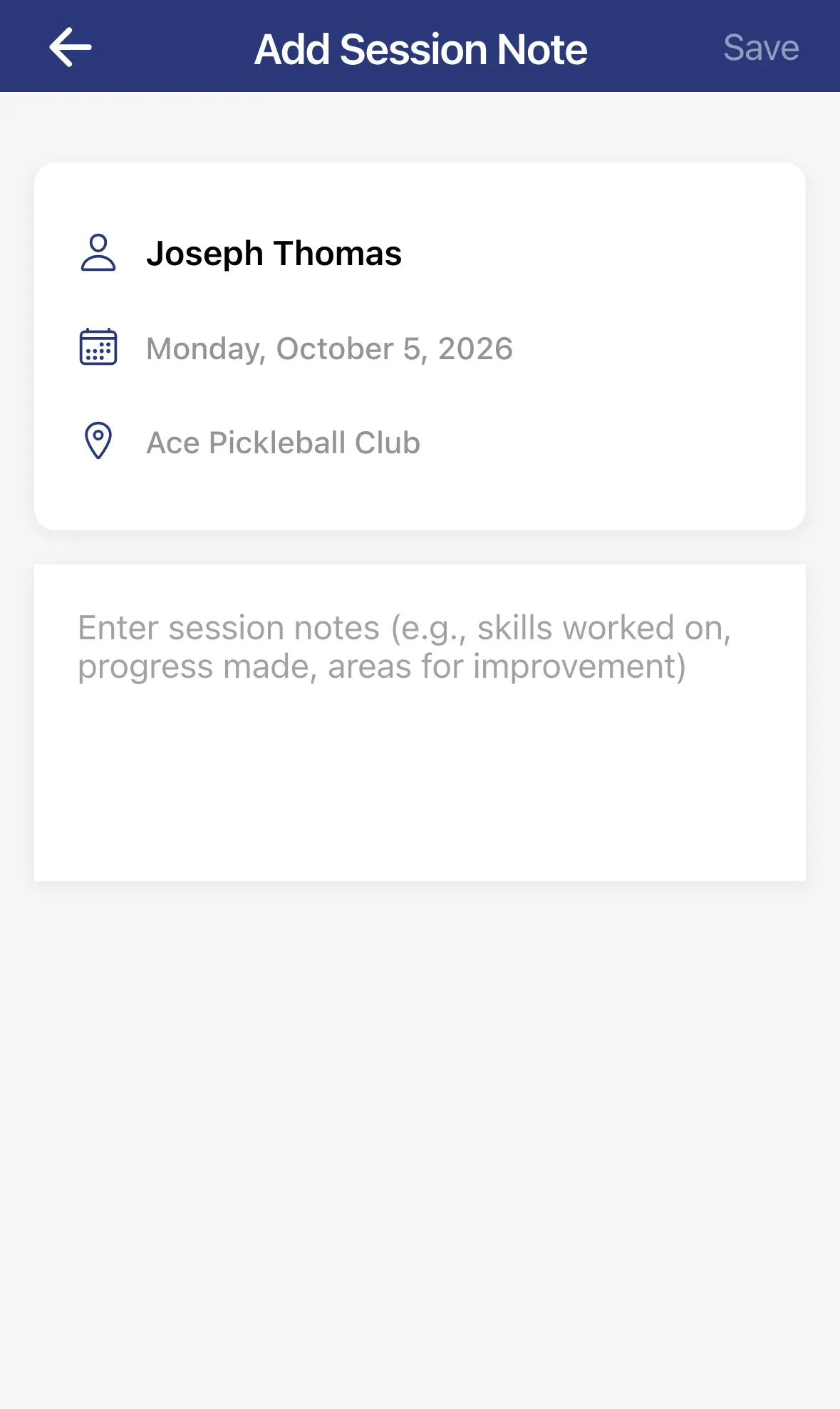
Open the appointment and tap Add Note.
-
Type your note. The box suggests things like skills worked on, progress made and areas for improvement.
-
Tap Save. Save stays greyed out until you’ve typed something.
Add a note from Activity
Section titled “Add a note from Activity”After a session ends with no note, a Session Notes reminder appears in the Activity tab and counts toward Notes Due on the Dashboard. Tap it to open the same screen, write the note and tap Save. The reminder goes away.
Good to know
Section titled “Good to know”- A Session Notes reminder shows for sessions from the last 7 days that have ended without a note.
- Don’t want to write one? Tap Clear All Actions on the Actions filter in Activity to clear Session Notes and payment reminders in one go.